
How to Transfer a Software License to a New Computer
Discover how to move your licenses to the new PC, distinguish license types, and avoid issues during activation.
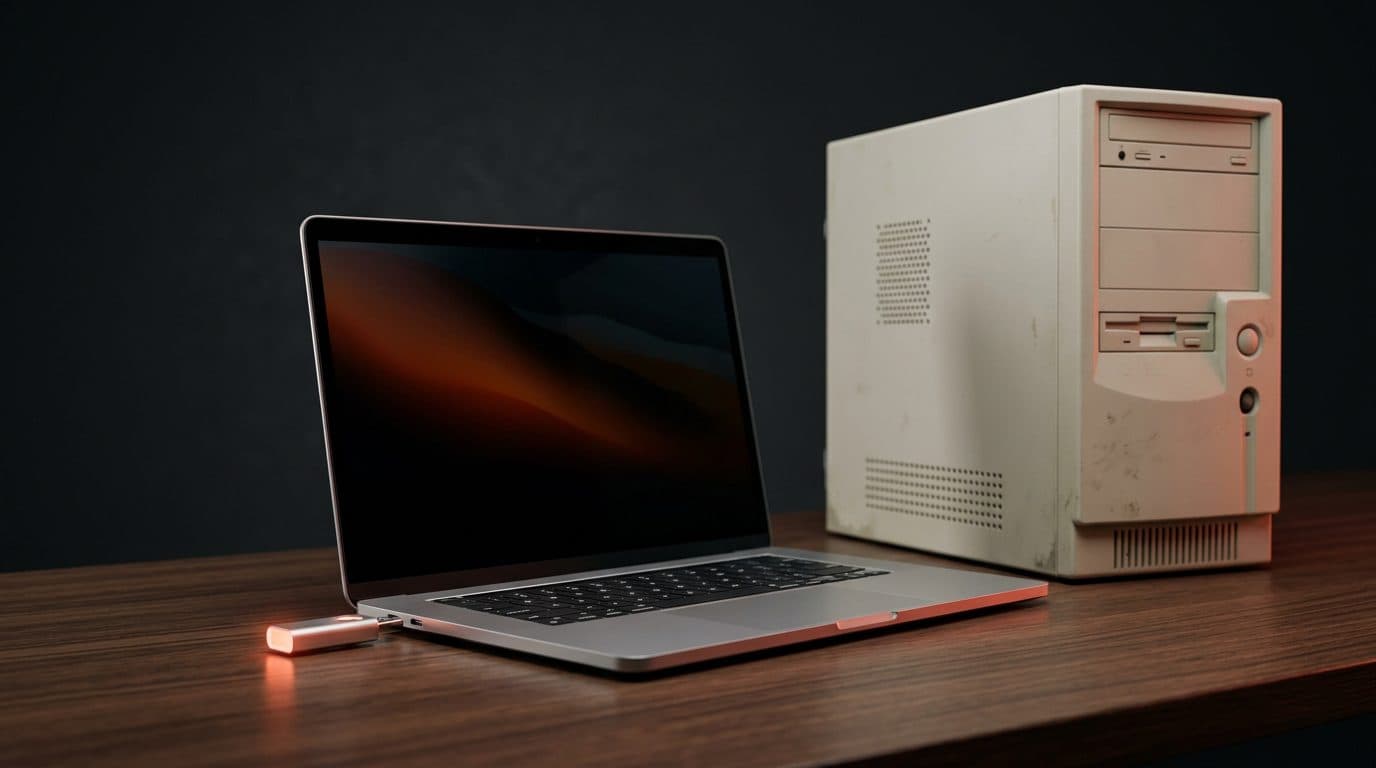
Check the type of license owned
Before starting the transfer, you need to check the type of license in use on the old computer. In fact, not all codes allow this transfer. Retail or ESD licenses are purchased separately from the computer and can be freely moved to another device. OEM licenses, on the other hand, come pre-installed by the computer manufacturer. This type of code remains tied forever to the motherboard of the first computer and cannot be transferred to a new machine.
If you own a Retail license, you can proceed without problems. In the case of an OEM license, it will instead be necessary to obtain a new code for the new computer. This distinction applies to most operating systems and programs from manufacturers such as Microsoft, Kaspersky, ESET, or Adobe.
Deactivate the program on the old device
A fundamental rule concerns the number of simultaneous uses. A single standard license can be active on only one computer at a time. Before entering the code on the new device, you must therefore free up the license from the old computer.
To do this, it is sufficient to uninstall the program from the old PC while connected to the internet. In this way, the manufacturer's servers register the deactivation and make the code available again. For protection software such as Bitdefender, Norton, or Acronis, deactivation often takes place via the control panel of your personal profile.
Manage subscription software via account
For modern programs such as subscription Office, Autodesk, or Adobe packages, the procedure is even simpler. These software products do not use a long alphanumeric code, but are linked directly to your personal account.
In this case, there is no need to look for old activation codes. Simply install the program on the new computer and log in with your credentials. From your account management panel, you will be able to see the associated devices and disconnect the old computer with a simple click. The new device will take its place automatically.
What to do in case of an error during activation
It can happen that the new computer rejects the activation key, showing an error message. This usually happens when the manufacturer's systems still see the license associated with the old device. There is no need to panic because the situation is easily resolved.
In these cases, you can use the guided telephone activation procedure, often provided by the software itself during the error phase. Alternatively, simply access the software manufacturer's portal and manage the connected devices. If the problem persists, the solution consists of contacting the retailer's or manufacturer's customer support to request the manual unlocking of the code.