
How a system image works to save your computer
Discover what a system image is, why it differs from simple data saving, and how it allows you to restore your PC.
The difference between saving files and creating an image
When you copy your documents or photos onto a USB flash drive, you are saving only your personal files. If the computer breaks or Windows stops working, those files are safe, but the computer remains unusable. To get it back to the way it was before, you would have to reinstall the operating system, find and install all the programs again, and then configure every setting from scratch. This work requires many hours and a lot of patience.
Creating a system image, on the other hand, means taking an exact and complete photograph of your entire hard drive at a specific moment. The image contains the operating system, installed programs, software licences, saved passwords, personal preferences, and all your data. It is not a simple copy of folders, but an identical cloning of the computer's entire content.
Starting again immediately without reinstalling anything
The main usefulness of this tool is seen in times of need, especially when the hard drive breaks permanently and must be replaced with a new one. Instead of starting from scratch with an empty computer, you can use the previously saved system image to transfer all the old content onto the new drive.
The restoration process overwrites the new drive and brings the computer back to the exact state it was in when you took that photograph. Programs will work immediately, settings will already be in place, and you will not have to re-enter activation codes or reconfigure your email. In a short time, the computer is operational again as if nothing had happened.
When to create the image and where to save it
There are specific moments when creating an updated image is crucial. The best time is before making major operating system updates or before installing structural changes. It is also useful to do it before a planned formatting, or to maintain a fixed schedule, for example once a month, for computers used daily for work.
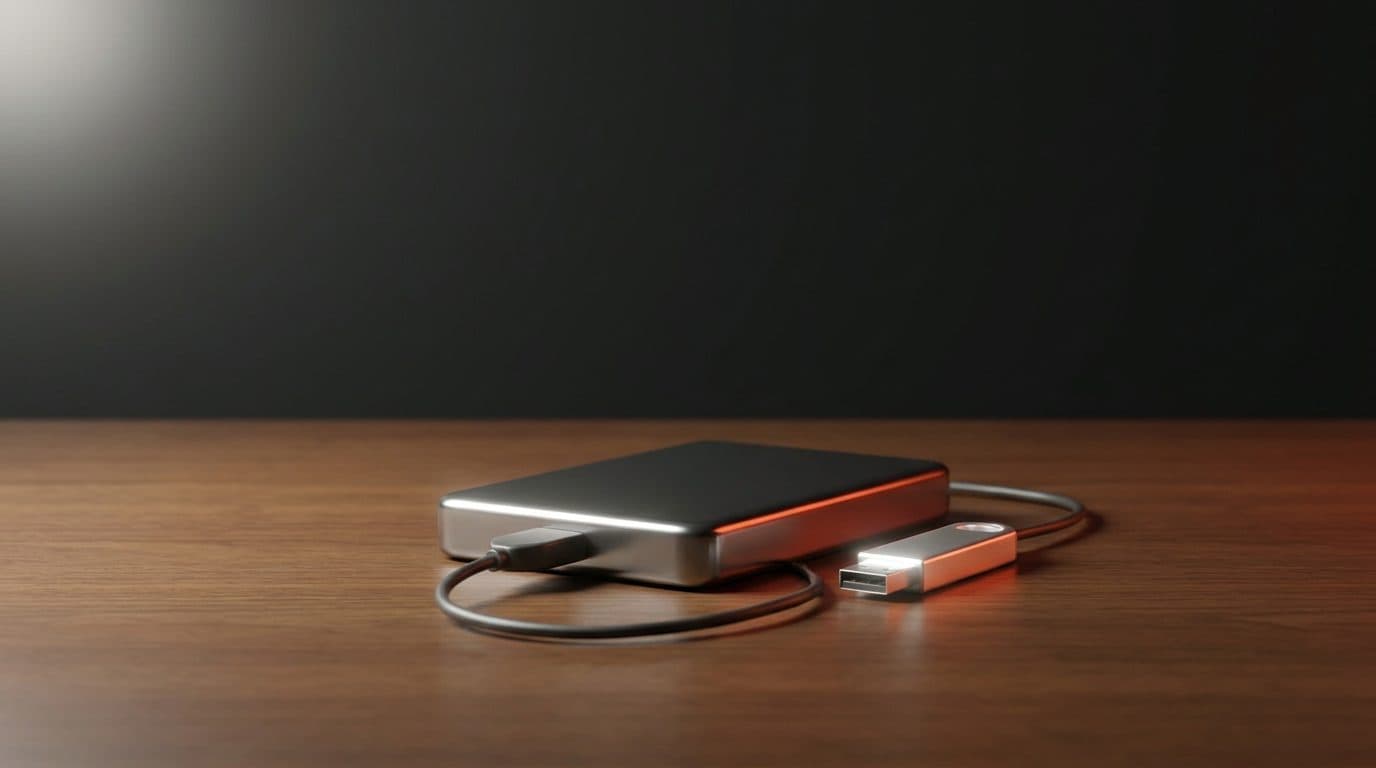
The location where you save the image is decisive for your security. You must never save the image on the same internal drive of the computer. If that drive breaks, you will lose both the system and its backup copy at the same time. Always use an external hard drive connected via cable, which you will keep disconnected from the computer and stored in a safe place once the procedure is finished.
Checking that everything works properly
Creating the system image is only half the job. To be sure you are protected, you must make sure that the restoration procedure is understandable and working before a real technical problem occurs.
Learn how to create the bootable media, which is usually a simple USB flash drive prepared through the backup program. Try starting the computer using that flash drive to verify that the system reads it and that it can see the external drive where you saved the image. Doing this test will give you the peace of mind of knowing how to manage the emergency calmly when the need arises.